Did you come across a speed trap or a hazard, such as roadworks, without Drive One warning you? There can be several reasons for this:
- No one has reported it yet.
Someone has to be the first to report a speed trap or hazard. If you see something that hasn't been reported, use one of the two buttons on the device to warn others. If you can confirm a warning, use the matching button. Read more about warning others and confirming warnings. - The warning type is turned off.
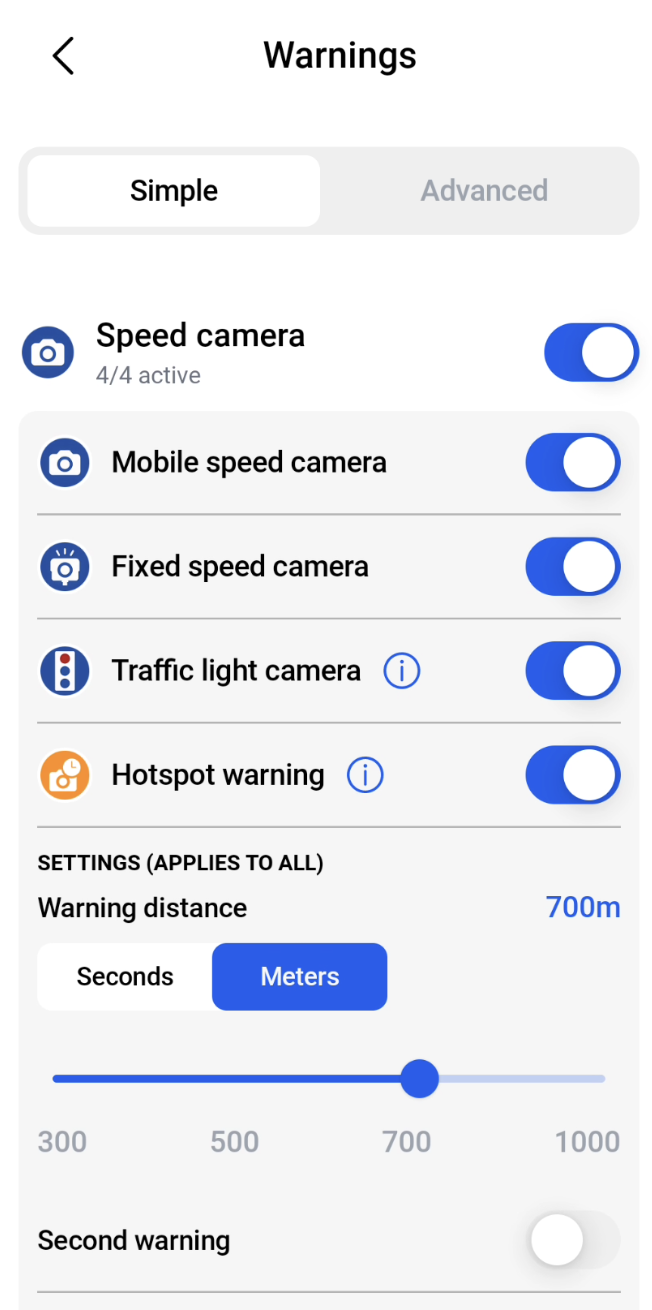
If you never get warnings of a certain type, check the warning settings in the app. See how to turn warning types on and off.
The warning is muted.
If you've muted a warning, you won't get it again. You can see your muted warnings in the app's settings under "Muted pins". Tap the warning and then the bin icon to turn it back on. If you can't see the "Muted pins" menu item, you haven't muted any warnings. Read more about muting warnings. 
Drive One is not connected.
Check that Drive One is turned on and properly connected. You can also turn on the connection indicator. It flashes and/or beeps at the interval you choose, so you can see that the connection is still active.
- Android: Make sure battery optimisation is turned off for the Drive One app.
- iPhone: Make sure location access is set to "Always" and "Precise Location" is turned on for Drive One.
Was this article helpful?
That’s Great!
Thank you for your feedback
Sorry! We couldn't be helpful
Thank you for your feedback
Feedback sent
We appreciate your effort and will try to fix the article