Applies to: All Drive One devices
Why rename a device?
If you have more than one Drive One device, you can give each one its own name, such as "Family car" or "Work van". This makes it easy to tell them apart in the app. You can also rename a device if you only have one.
The name is only shown in the app and does not affect how the device works.
You can change it again at any time.
The steps depend on whether you have one device or several devices.
If you have more than one device
- Open the Drive One app.
- Tap the menu (the gear icon in the top-right corner).
- Select Devices.
- Find the device you want to rename and tap Details.
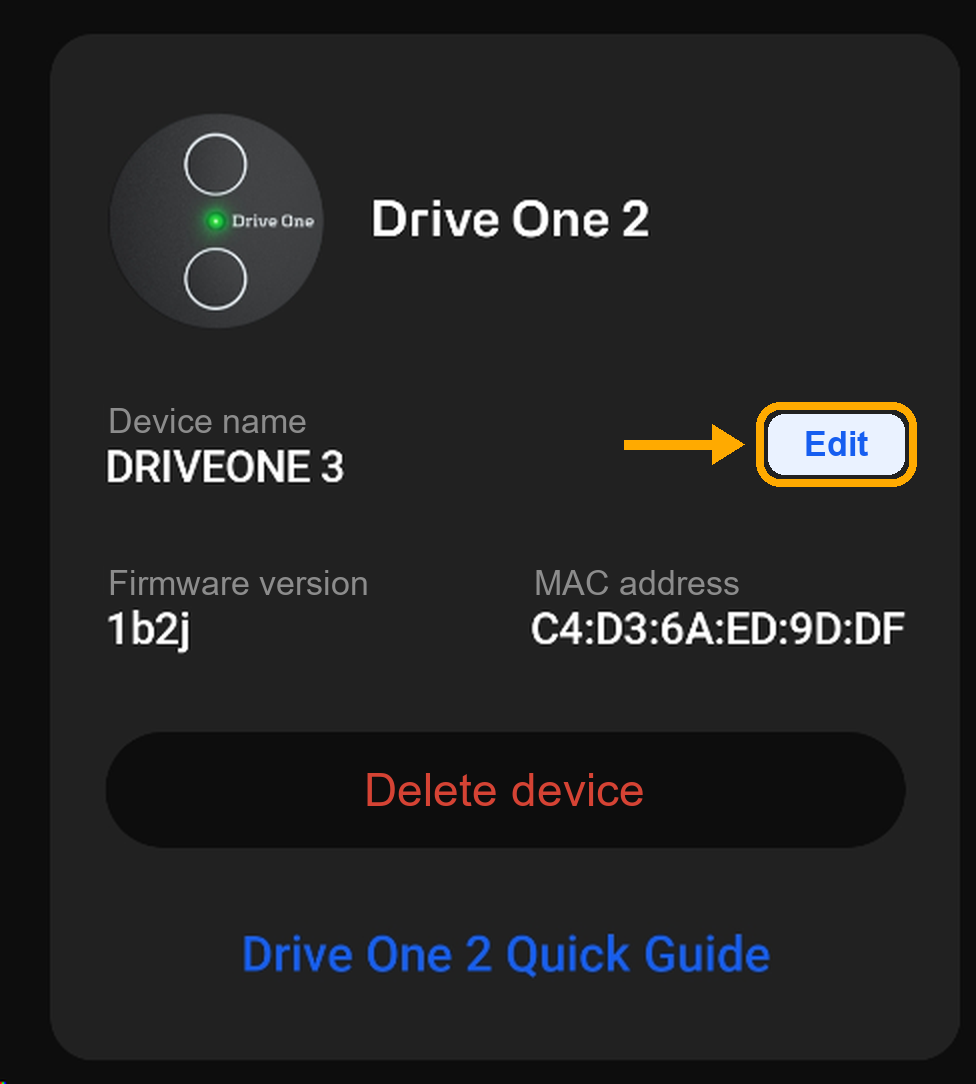
- Scroll down to Device details.
- Tap Edit and type the new name.
- Tap the check mark to confirm.
The device now shows its new name.
If you have only one device
- Open the Drive One app.
- Tap the menu (the gear icon in the top-right corner).
- Select Devices.
- Scroll down to your device.
- Tap Edit and type the new name.
- Tap the check mark to confirm.
The device now shows its new name.
Was this article helpful?
That’s Great!
Thank you for your feedback
Sorry! We couldn't be helpful
Thank you for your feedback
Feedback sent
We appreciate your effort and will try to fix the article